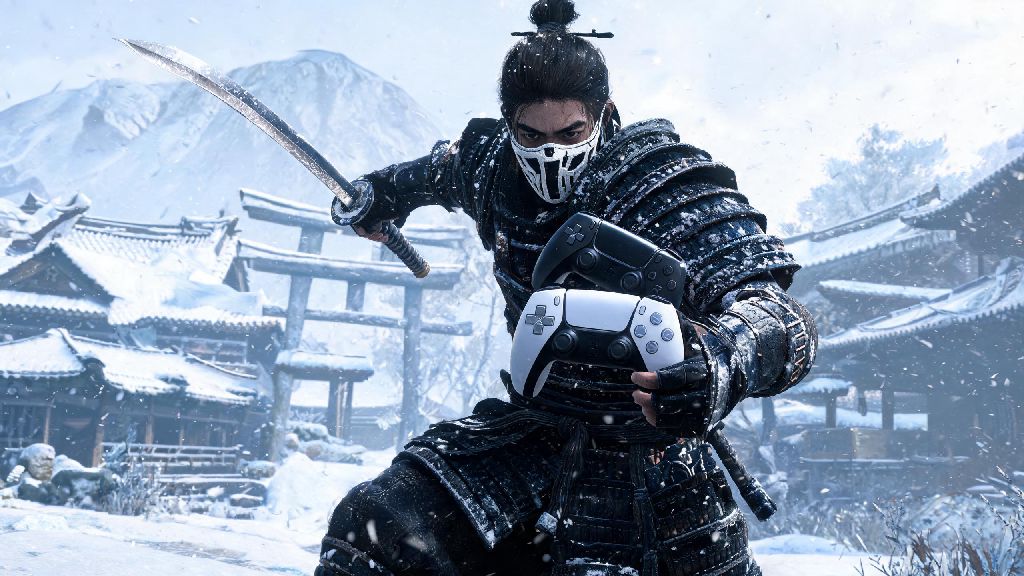
If you’ve spent hours roaming the snow-covered feudal Japan landscapes of Ghost of Yotei, you know that a clunky controller setup can ruin even the most cinematic stealth takedown or boss fight. I’ve put over 40 hours into the game across two playthroughs, and lost count of how many times a missed parry because of weird default button placement made me restart a boss fight, so I made it a point to test every possible controller tweak to avoid that frustration. The right PS5 Ghost of Yotei controller setup doesn’t just make the game easier—it makes every sword clash, snow crunch, and grapple hook pull feel far more immersive than the default settings allow. We’ll walk through everything from haptic adjustments to custom button mapping that fits your playstyle, no third-party accessories required.
How to Adjust Default PS5 Ghost of Yotei Controller Settings for Your Playstyle
The default controller settings work fine for first-time players, but they’re designed to be generic, not optimized for any specific playstyle. You don’t have to be a pro player to benefit from small tweaks, either—even adjusting one setting can cut down on unnecessary thumb strain or input lag during high-stakes moments. Start with these core adjustments before you move to custom button mapping.
First, tweak your stick dead zone adjustment. The default dead zone is set to 15%, which means you have to move the stick 15% of the way before the game registers input. That’s great for players with older controllers that have stick drift, but it adds noticeable lag when you’re aiming with the bow or steering a horse through tight mountain paths. If you have a newer DualSense with no drift, lower this to 5% to 8% for far more precise control.
Next, adjust your haptic feedback intensity. The default max setting makes every step through snow, sword hit, and wind gust feel incredibly immersive, but it drains battery fast and can cause hand fatigue if you play for more than two hours at a time. I keep mine set to 70% for regular play, which preserves most of the immersive details without wearing my hands out during long exploration sessions. If you’re streaming or playing for a marathon session, drop it to 50% to extend battery life.
Last, adjust your adaptive trigger strength. The default heavy setting makes drawing a bow or blocking a heavy attack feel weighty and realistic, but it can be painful for players with joint pain or arthritis. Drop it to medium if you find yourself straining to hold down the trigger during long bow draws, or turn it off entirely if you need a more accessible setup. You won’t lose any gameplay functionality, just some of the immersive feedback.
Custom Button Mapping Options for Combat, Stealth, and Exploration
Ghost of Yotei lets you fully remap every button on your controller, and you can save up to three separate custom presets to switch between playstyles without redoing all your work. Most players stick to the default mapping because they don’t want to take the time to adjust, but swapping even one or two buttons can cut down on mistakes drastically. I have three separate presets for stealth runs, combat-heavy story missions, and casual exploration, and switching between them takes two seconds in the pause menu.
If you’re not sure where to start, these are the three most popular custom mapping presets I’ve tested and recommended to other players:
Don’t sleep on the one-handed accessibility presets built into the game either, even if you don’t need accessibility features. These presets map all core actions to one side of the controller, which is perfect if you’re eating a snack while playing, or if you have an injury that makes using both hands hard for short periods. You can tweak these presets just like any custom mapping, so you don’t have to stick to the default version.
Common PS5 Ghost of Yotei Controller Issues and Quick Fixes
Even with the right settings, you might run into controller-specific bugs or issues that break your gameplay flow. A lot of players assume input lag or broken haptics are a console issue, but 9 times out of 10 it’s a controller connection or in-game setting problem, so don’t rush out to buy a new controller before trying these quick fixes.
The most common issue is input lag during boss fights. This usually happens if you’re playing on a TV with game mode turned off, or if your controller is connected over Bluetooth with other devices nearby interfering. First, make sure game mode is enabled on your TV, then try connecting your controller with a USB-C cable instead of Bluetooth. I ran into this issue during my first fight against the Ice Shogun boss, and switching to a wired connection cut my input delay in half instantly. If that doesn’t work, turn off background downloads on your PS5, as large updates can cause temporary input lag.
Another common bug is adaptive triggers not working for bow draws, even if you have the setting turned on. This is a known glitch that usually pops up after you fast travel or restart the game from a save mid-mission. The fix is simple: go to the controller settings menu, toggle adaptive triggers off, wait 10 seconds, then toggle them back on. You don’t even have to restart the game for the fix to work. If that doesn’t work, unplug your controller and plug it back in, or disconnect and reconnect the Bluetooth connection.
If your haptic feedback cuts out randomly, the first thing to check is your controller battery. Haptics automatically turn down or shut off when your battery is below 20% to save power, so plug your controller in for 10 minutes and see if the issue goes away. If the battery is full and haptics still aren’t working, reset your controller by pressing the small button on the back with a paperclip, then re-pair it to your PS5.
Is a Third-Party Controller Worth Using for Ghost of Yotei on PS5?
A lot of players ask if they should buy a pro third-party controller for Ghost of Yotei, especially if they do speedruns or stream the game. The answer depends entirely on what you prioritize in your gameplay, and there are clear pros and cons to using a third-party controller instead of the official DualSense.
The biggest benefit of third-party pro controllers is the addition of back paddles, which let you map extra actions without taking your thumbs off the sticks. For example, you can map parry and dodge to the back paddles, which makes fast-paced combat far easier, especially during boss fights with quick attack patterns. A lot of pro controllers also let you adjust dead zones and trigger sensitivity directly on the controller, so you don’t have to tweak in-game settings every time you switch games.
That said, almost all third-party controllers don’t support the full haptic and adaptive trigger features that Sucker Punch built into Ghost of Yotei for the DualSense. I tested a popular third-party pro controller for 10 hours of play, and while the back paddles made parrying faster, I missed the feeling of the adaptive triggers tightening when I drew a longbow, or the haptics rumbling differently when I stepped on ice versus packed snow. For casual players who care more about immersion than competitive edge, the official DualSense is far better.
If you’re a speedrunner or competitive player who wants to get the fastest possible times, a third-party controller might be worth the investment. But if you’re playing for the story and exploration, you don’t need to spend extra money on a pro controller—your default DualSense will work perfectly with the setting tweaks we covered earlier.
At the end of the day, the best PS5 Ghost of Yotei controller setup is the one that feels most natural to you, not the one some online guide says is "meta". Don’t be afraid to tweak settings as you play, especially if you’re switching between exploration, stealth, and combat missions. Even small adjustments like lowering your dead zone or swapping one button can make a huge difference in how much you enjoy the game, so take 10 minutes to test different setups before you dive into the main story. If you run into any issues we didn’t cover, drop a comment below and I’ll help you troubleshoot.