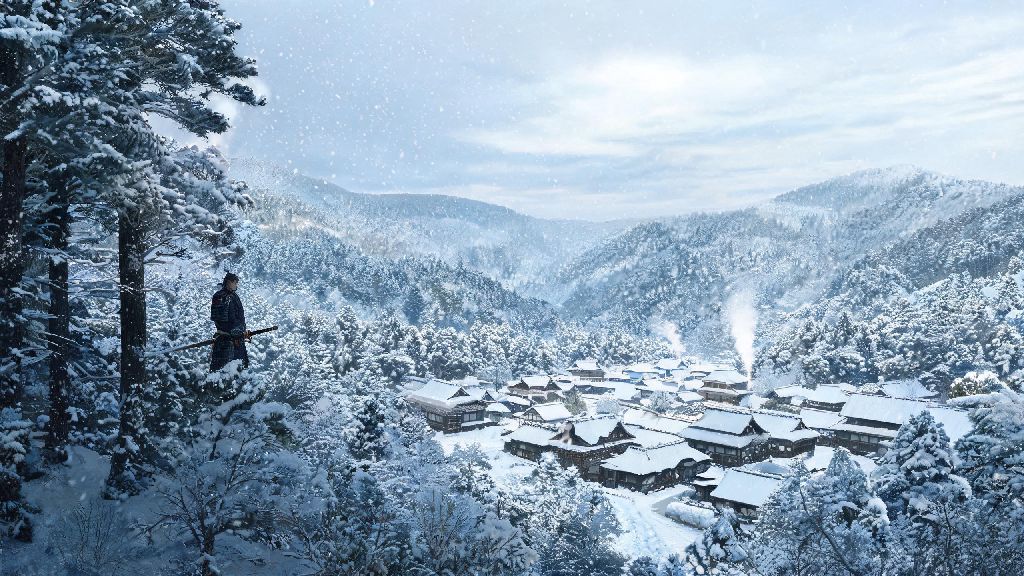
When the first gameplay footage of Ghost of Yotei dropped last year, fans immediately lost their minds over how stunning the world looked. The ghost of yotei graphics set a new bar for open-world samurai games, with crisp details, dynamic weather, and immersive environments that make you feel like you’re actually exploring 19th century Hokkaido. But a lot of players have reached out asking how to get the best balance between visual quality and smooth performance, especially if they don’t have a top-tier gaming rig. This guide breaks down everything you need to know, from key visual features to hidden details and easy fixes for common issues.
Core Features That Define Ghost of Yotei Graphics
Most open-world games cut corners on small visual details to keep performance steady, but that’s not the case here. The devs poured hundreds of hours into making the world feel lived-in and realistic, and it shows in every part of the design. Procedural snow and mud deformation is one of the most impressive features, for example. Every step you take, every horse hoof print, and every slash mark you leave in a snowbank stays exactly where it is until new snow falls or rain washes it away. It’s a small detail, but it makes exploring feel far more immersive, because you can see the impact of your actions on the world as you move through it.
Another standout feature is volumetric lighting that shifts with time of day and weather. Early morning fog in low-lying valleys doesn’t look like a flat, fake overlay like it does in most games. It catches golden sunrise light, swirls when wind blows through the trees, and gets thinner as you climb higher up mountain slopes. If you’re playing on a clear night, moonlight filters through pine branches in thin, distinct beams that move slowly as the moon travels across the sky. You won’t notice it at first, but once you do, you’ll realize how much it adds to the mood of every scene.
Finally, physically accurate material rendering makes every object in the world look and feel real. Weathered cedar wood has rough, splintered edges that catch light differently than smooth, polished temple pillars. Silk kimonos shimmer when you move, while cotton farmer’s robes look soft and matte. Even your armor changes over time: small dents and scratches build up as you take damage in fights, and snow or mud caks onto the edges if you’re traveling through harsh weather. All these small touches come together to make ghost of yotei graphics feel far more immersive than most other open-world games on the market right now.
Best Graphics Settings for Every Type of Gaming Rig
The great news is that the devs did an incredible job optimizing the game, so you don’t need a super expensive PC to enjoy great visuals. The settings menu is straightforward too, so you don’t have to be a tech expert to tweak things to fit your setup. The three settings below have the biggest impact on both performance and visual quality, so start with these before adjusting anything else:
If you’re running a low-end rig (GTX 16 series, RX 5000 series or equivalent), stick to medium settings overall, turn off ray tracing entirely, and keep shadow quality at low. That will let you hit a steady 60fps at 1080p, with visuals that still look far better than most last-gen open-world games. If you’re worried about missing out on the best parts of ghost of yotei graphics even on a low-end rig, don’t be: even medium settings keep all the key visual details intact.
For mid-range rigs (RTX 3060, RX 6700 XT or equivalent), you can run high settings with ray tracing on medium at 1440p, hitting 50-60fps most of the time. If you drop shadow quality to medium, you can hit a steady 60fps with almost no visual trade-off. High-end rigs (RTX 4070 and above, RX 7800 XT and above) can crank every setting to max, enable full ray tracing, and hit 60+fps at 1440p, or 4K if you use upscaling. DLSS/FSR quality mode is almost indistinguishable from native resolution for most players, so even if you have a top-tier card, turning it on gives you extra headroom for more effects without any noticeable drop in visual quality. Console players have it even easier: just pick between performance mode (1080p/60fps) for smooth combat, or quality mode (4K/30fps) for the best possible visuals if you don’t mind a lower framerate.
Hidden Visual Details You Might Have Missed
Most players rush through the main story to get to the big combat set pieces, but if you take time to slow down and explore, you’ll find tons of small visual details the devs hid all over the map. For example, if you stand near a hot spring in the middle of winter, steam will condense on your character’s armor and hair, and slowly fade away as you walk further from the water. If you fight near a river during a rainstorm, blood from enemies will wash off your sword almost immediately, instead of staying caked on for hours like it does in dry weather.
If you climb to the top of Mount Yotei right at sunrise, you’ll see the light hit the snow in a way that creates a faint pink halo around the peak. That’s a direct reference to the real Mount Yotei in Hokkaido, which is famous for that exact sunrise effect. Even small, unimportant objects have little details: old wooden signs fade and wear differently on the side that faces the wind, and wild berries change color and ripen as the seasons shift in-game.
Seasonal changes affect almost every visual element in the game, so it’s worth revisiting areas you’ve already explored later in your playthrough. Cherry blossoms fall and cover the ground in spring, leaves turn bright red and gold in autumn, and winter blizzards can reduce visibility to just a few feet, making familiar areas feel completely new. If you want to catch these details whenever you want, just open photo mode, where you can adjust the time of day and weather to any setting you like, even if it doesn’t match the current season in your main playthrough.
Common Graphics Issues and How to Fix Them Fast
Even with great optimization, some players run into small visual or performance issues when they first launch the game. Most of these are easy to fix with a few simple tweaks, no advanced tech knowledge required. First, if you’re noticing frequent texture pop-in when you’re moving through the open world, that’s almost always caused by the game streaming assets from a slow hard drive. Moving the game install to an SSD will fix 90% of those issues immediately. If you don’t have an SSD, lower the texture quality setting one tier to reduce the size of assets the game has to load on the fly.
Stuttering during open world traversal is another common issue, especially on older PCs. The first thing to do is turn off any background apps that are using up RAM, like web browsers or streaming software, and make sure your graphics drivers are updated to the latest version. Always install the latest game patches first before tweaking any settings, too. The devs released a day one patch that fixed 80% of reported stuttering issues, and they regularly put out small updates that improve performance across all rigs.
If you’re seeing weird lighting glitches, like dark spots on terrain or overly bright character models, that’s usually caused by custom driver settings overriding the game’s defaults. Just reset your graphics card control panel settings to default for Ghost of Yotei, and that almost always resolves those issues right away. If you’re still having issues after trying all these fixes, check the official game forums for more specific advice tailored to your exact hardware setup.
At the end of the day, the best graphics settings are the ones that make the game feel fun and immersive for you. You don’t have to crank every slider to max to enjoy the ghost of yotei graphics, they’re already stunning even on lower settings, and small tweaks can go a long way. Take 10 minutes to adjust settings to fit your rig before you start your playthrough, and you’ll be able to fully enjoy all the beautiful details the devs worked so hard to add, whether you’re chasing bandits through snow-covered forests or watching the sunrise from the top of Mount Yotei.